
When building your first PC, it's easy to confuse RAM and storage. They're both measured in gigabytes, they both store data, but they do completely different jobs. Understanding the difference matters for building a balanced PC. Here is the straightforward version.
The Simple Explanation
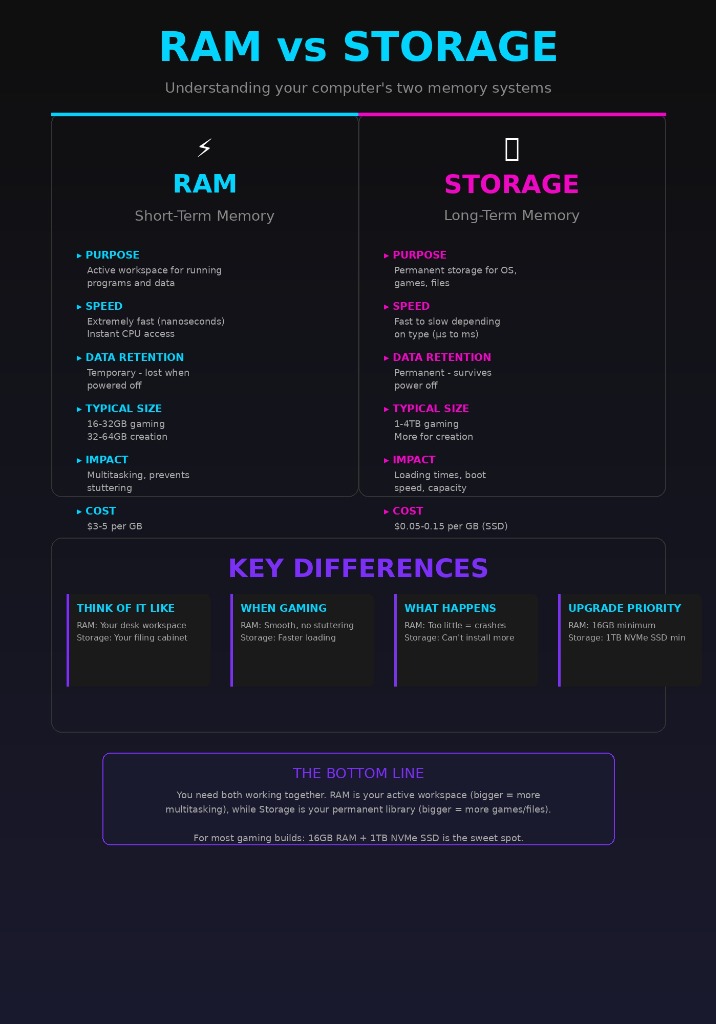
RAM (Random Access Memory): Your computer's short-term memory. Think of it like your desk workspace – the bigger it is, the more projects you can have open and actively work on at once. When you turn off your PC, everything in RAM disappears.
Storage (SSD/HDD): Your computer's long-term memory. Think of it like your filing cabinet – this is where all your files, programs, and operating system live permanently. Data stays here even when your PC is off.
What Does RAM Do?
RAM is your computer's active workspace. When you open a program, game, or browser tab, your computer loads that data from storage into RAM so it can access it incredibly quickly.
Why RAM is fast: It's directly connected to your CPU and operates at extremely high speeds (measured in nanoseconds). Your CPU can grab data from RAM almost instantly.
Key jobs RAM handles:
- Holding currently running programs and their data
- Storing game assets, textures, and levels you're actively playing
- Keeping browser tabs loaded and ready
- Running background processes and system tasks
- Providing workspace for video editing, photo editing, and other intensive tasks
The catch: RAM is temporary (volatile). The moment you shut down your PC, everything in RAM vanishes. That's why you have to save your work – saving writes it to storage (permanent) instead of just RAM (temporary).
What Does Storage Do?
Storage is where everything lives permanently. Your operating system, games, programs, photos, videos, documents – all of it sits on your storage drive.
Why storage is slower: Even the fastest SSDs are significantly slower than RAM (measured in microseconds vs nanoseconds). But storage keeps everything safe when your PC is off.
Key jobs storage handles:
- Installing and storing your operating system (Windows, etc.)
- Storing games, applications, and software
- Keeping all your personal files (photos, videos, documents)
- Holding game installations, even when you're not playing them
- Providing permanent backup of everything on your computer
The advantage: Storage is permanent (non-volatile). Turn off your PC, and everything is still there when you boot back up.
How They Work Together
Here's where it clicks: your storage and RAM work as a team.
Loading a game:
- Game files live on your storage drive (SSD/HDD)
- When you launch the game, your PC loads necessary files from storage into RAM
- While playing, the CPU pulls data from RAM (super fast)
- Loading new levels means pulling more data from storage into RAM
- When you quit, the game data is cleared from RAM but stays on storage
Why you need both:
- Fast storage (SSD) = faster game loading times, faster boot times
- Enough RAM = smooth performance while playing, no stuttering
- Not enough RAM = computer uses storage as "virtual memory" which is much slower
- Not enough storage = can't install all your games and files
RAM: Types and Speeds
DDR Generations
DDR4: Current standard, widely used, affordable
- Speeds: 2400MHz - 3600MHz commonly
- Plenty fast for gaming and productivity
DDR5: Newer standard, faster, more expensive
- Speeds: 4800MHz - 7200MHz+
- Better for high-end builds, not necessary for most users
Your motherboard supports one or the other – not both.
How Much RAM Do You Need?
8GB: Bare minimum for basic use today
- Fine for: Web browsing, light productivity, older games
- Struggles with: Modern gaming, multitasking, content creation
16GB: Sweet spot for most users
- Great for: Gaming, streaming, moderate multitasking
- This is what we recommend for most builds
32GB: For power users and creators
- Excellent for: Heavy multitasking, video editing, 3D rendering, serious gaming while streaming
- Overkill for casual gaming
64GB+: Professional workstation territory
- Only needed for: Professional video production, virtual machines, serious development work
Dual Channel Configuration
Always buy RAM in pairs (2x8GB instead of 1x16GB). Two sticks run in "dual channel" mode, which nearly doubles memory bandwidth. Same capacity, better performance.
Storage: Types and Speeds
Storage Types
NVMe SSD (M.2 Form Factor)
- Speed: 2,000 - 7,000+ MB/s
- Best for: OS, games, frequently used programs
- Pros: Fastest option, compact, no cables
- Cons: More expensive per GB
SATA SSD (2.5" Form Factor)
- Speed: 500 - 550 MB/s
- Best for: Secondary storage, budget builds
- Pros: Affordable, still much faster than HDD
- Cons: Slower than NVMe, needs cables
HDD (Hard Disk Drive)
- Speed: 100 - 200 MB/s
- Best for: Mass storage of large files
- Pros: Cheapest per GB, high capacities
- Cons: Very slow, mechanical (can fail), noisy
Modern recommendation: NVMe SSD for your main drive, add more storage as needed (NVMe, SATA SSD, or HDD for bulk files).
How Much Storage Do You Need?
500GB: Minimum, tight for modern gaming
- Fits: OS + a few large games
- Reality: Runs out fast with modern 100GB+ games
1TB: Sweet spot for most users
- Fits: OS + 10-15 modern games + programs + files
- Recommended minimum for gaming builds
2TB: Comfortable for gamers with large libraries
- Fits: OS + 20-30 games + plenty of files
- Great for content creators who store footage
4TB+: For large game libraries or content creation
- Fits: Massive game libraries, video editing projects
- Consider adding secondary HDD for bulk storage
Key Differences at a Glance
RAM (Active Workspace)
- Purpose: Active workspace for running programs
- Speed: Extremely fast (nanoseconds)
- Data Retention: Temporary (lost when powered off)
- Typical Size: 16-32GB
- Impact: Multitasking, prevents stuttering
- Cost: Expensive ($3-5/GB)
- Upgradability: Easy to add more
Storage (Permanent Library)
- Purpose: Permanent storage for OS, games, files
- Speed: Fast to slow (microseconds to milliseconds)
- Data Retention: Permanent (survives power off)
- Typical Size: 1-4TB
- Impact: Loading times, boot speed
- Cost: Cheap ($0.05-0.15/GB for SSD)
- Upgradability: Easy to add more
Real-World Performance Scenarios
Scenario 1: Gaming Performance
Not enough RAM (8GB with modern game):
- Game stutters when loading new areas
- Closing browser tabs to free up RAM
- System uses slow storage as "virtual memory"
- Result: Choppy gameplay
Enough RAM (16GB+):
- Game runs smoothly from RAM
- Can keep Discord, Spotify, browser open
- No stuttering or slowdowns
- Result: Smooth experience
Storage impact:
- HDD: 2-3 minute game load times, frustrating
- SATA SSD: 30-45 second load times, acceptable
- NVMe SSD: 10-20 second load times, great
- Result: Doesn't affect FPS, just how long you wait
Scenario 2: Video Editing
Not enough RAM (16GB with 4K footage):
- Previews stutter and lag
- Rendering takes longer
- Can't have many tracks/effects
- Frequent crashes
Enough RAM (32GB+):
- Smooth timeline scrubbing
- Multiple 4K tracks no problem
- Faster rendering
- Stable operation
Storage impact:
- HDD: Painful to work with, constant buffering
- SATA SSD: Workable but not ideal
- NVMe SSD: Smooth playback, fast exports
- Result: Directly affects editing experience
Common Beginner Mistakes
Mistake 1: "I have 1TB of storage, so I have plenty of memory" Storage ≠ RAM. You can have 10TB of storage and only 8GB of RAM, which is unbalanced.
Mistake 2: "I'll just get more storage instead of RAM" Can't substitute one for the other. When Windows uses storage as "virtual memory" (page file), your PC crawls.
Mistake 3: "I need 64GB of RAM but 500GB storage is fine" For most users, this is backwards. 16GB RAM + 1TB SSD is better balanced than 64GB RAM + 500GB SSD.
Mistake 4: "All SSDs are the same speed" NVMe SSDs are 4-10x faster than SATA SSDs. For your OS and games, NVMe makes a noticeable difference.
Mistake 5: "I can't upgrade RAM or storage later" Both are among the easiest upgrades. Start with what you need, add more later if required.
What Should You Buy?
Budget Gaming Build ($700-900)
- RAM: 16GB DDR4 3200MHz (2x8GB)
- Storage: 1TB NVMe SSD
- Why: Balanced for 1080p gaming, room to add more storage later
Mid-Range Build ($1200-1500)
- RAM: 16GB DDR4 3600MHz or 32GB DDR5 (2x16GB)
- Storage: 1TB NVMe SSD + 2TB HDD (or 2TB NVMe if budget allows)
- Why: Plenty of RAM for gaming/streaming, storage for large library
High-End Build ($2000+)
- RAM: 32GB DDR5 (2x16GB)
- Storage: 2TB Gen 4 NVMe SSD + 4TB HDD or second SSD
- Why: Future-proof RAM, fast primary storage, massive library capacity
Content Creation Build
- RAM: 32-64GB depending on workload
- Storage: 1TB NVMe (OS/programs) + 2TB NVMe (working files) + 4TB+ HDD (archive)
- Why: RAM-intensive work needs headroom, active projects need fast storage
Upgrade Priority
If you're on a tight budget, here's the priority:
- Start with: 16GB RAM + 1TB NVMe SSD (minimum viable)
- First upgrade: Add more storage (games are huge)
- Second upgrade: Upgrade to 32GB RAM (if doing content creation or heavy multitasking)
- Third upgrade: Add even more storage
Bottom Line
RAM and storage work together but serve completely different purposes. RAM is your active workspace – make it big enough to handle what you're doing right now. Storage is your filing cabinet – make it big enough to hold everything you own.
For most gamers: 16GB RAM is plenty, but you'll want at least 1TB of fast NVMe storage. Don't skimp on either – both are essential for a smooth PC experience.
The good news? Both are easy to upgrade later. Start with a solid foundation (16GB RAM + 1TB SSD), then add more as your needs grow.
Ready to choose your RAM and storage? Check out our recommended configurations and product picks for every budget level!