
Android 16 doesn't look dramatically different from Android 15 at first glance. You update, the icons shuffle, the new Material 3 Expressive animations feel a little springier, and that's about it. If you're on a Pixel you might notice the quick settings panel is slightly redesigned. If you're on a Samsung, you might not notice anything at all for a few weeks.
If you dig one or two menus deeper you'll find genuinely useful stuff Google didn't loudly advertise. This guide walks through 10 Android 16 features I enable first — the practical new features that immediately improve the phone experience.
Android's biggest strength and biggest weakness are the same thing: it's modular. Each phone maker can shuffle the settings around, rename things, or hide options behind their own skin. So the menu paths below are for a clean Pixel install. Everything on this list also works on Samsung, OnePlus, and Motorola, but the menu names drift around. When in doubt, search the Settings app for the feature name — Google made the in-settings search much better in Android 16, and it'll take you straight to the toggle no matter which OEM reorganised the menus.
A quick note on eligibility: every feature on this list works on any phone that can run Android 16 officially, which as of today means Pixel 6 and newer, Samsung Galaxy S22 and newer, most OnePlus 11 and newer models, and a long list of recent mid-range phones. A couple of features lean on LE Audio hardware that's only in phones from the last year or two — I've flagged those where they come up.
1. Notification cooldown
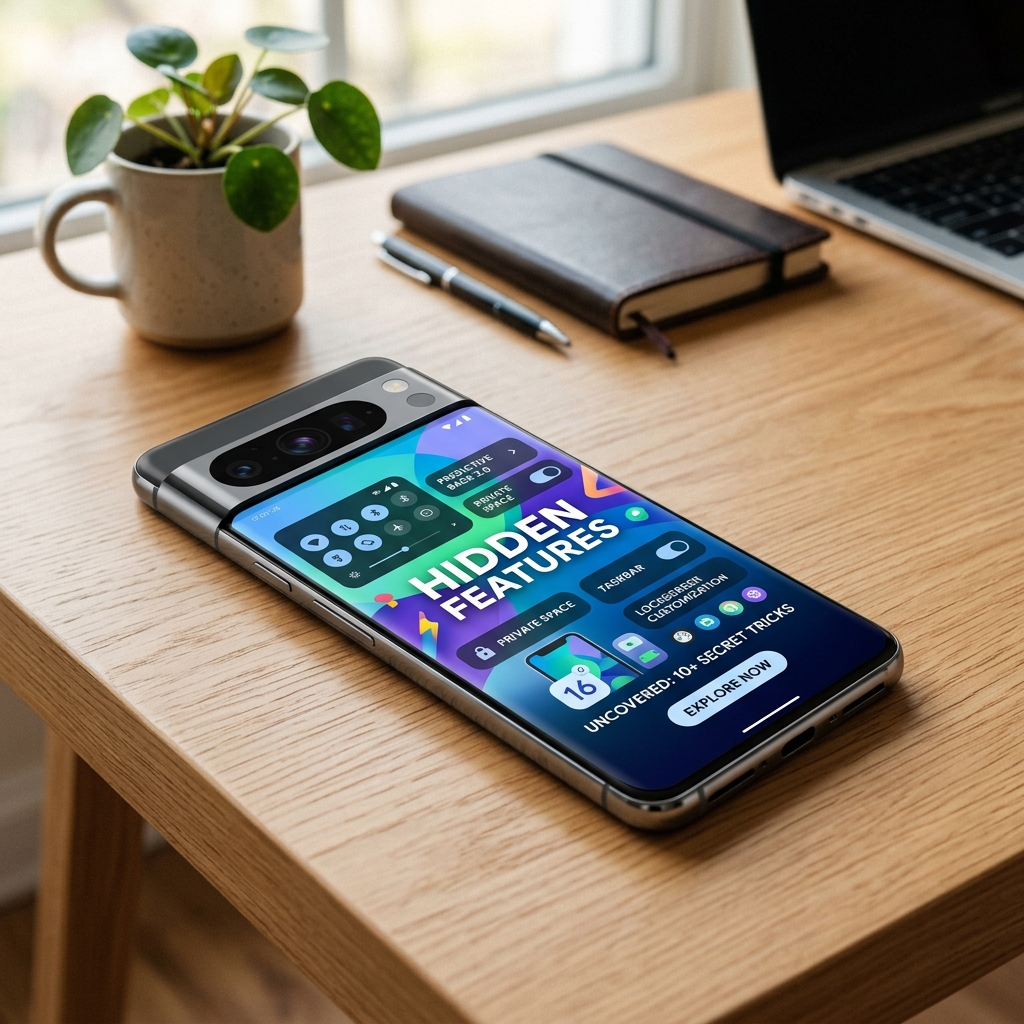
If an app goes on a notification spree — a group chat at lunch, a news app during breaking news, a Slack channel that catches fire while you're trying to focus — Android 16 can automatically lower the volume of repeat notifications from that app for a short window.
Practical details: the first notification still rings at full volume so you don't miss urgent pings; subsequent notifications during the cooldown window are quieter. On most devices this applies to sound and heads-up behavior (vibration and Do Not Disturb still follow their separate rules). If your OEM moved the menu, search settings for “Notification cooldown.”
No more eight escalating dings in twenty seconds. The first one comes through full-volume. The rest get quieter, automatically, and snap back to normal once the app goes quiet. It's the first time Android has treated notification volume as a dynamic thing rather than a fixed slider, and once you use it for a week you'll wonder how you ever lived without it.
2. Live Updates
Google's answer to iPhone Live Activities. Delivery tracking, ride-share status, boarding passes, and navigation now pin themselves to the top of your notifications and update in real time. Uber actually shows the little car moving on the lock screen. DoorDash shows the order progress bar. Google Maps shows the next turn. None of it requires you to unlock the phone.
It's already on by default in Android 16, but a lot of apps hide the setting. In Uber, DoorDash, and Google Maps, look for "Live updates" inside the app's notification settings and make sure it's enabled. Expect more apps to pick this up over the next few months — the API is new and third parties are still catching up.
3. Advanced Protection mode
This is a one-toggle security hardening mode. Turning it on blocks sideloaded apps, forces HTTPS, enables Memory Tagging Extensions on supported chips, locks down USB data transfer when the phone is locked, and turns on Google's strongest phishing protection in Chrome and Messages. It also disables 2G fallback on the modem so your phone can't be tricked into downgrading to a cell protocol that broke years ago.
Settings → Security & privacy → Advanced Protection → Turn on.
You give up a small amount of flexibility — sideloading is the main one — in exchange for a phone that's hilariously hard to compromise. Google originally built this mode for journalists, activists, and high-risk users, but in Android 16 they opened it up to everyone and cleaned up the UI. Worth it for almost anyone who isn't actively installing APKs from random forums.
4. Identity Check
If someone steals your phone and knows your PIN, Identity Check requires biometric confirmation — face or fingerprint — before they can change your Google password, remove Find My Device, or disable theft protection. And it only enforces this when you're away from trusted locations like home or work, so you're not biometric-scanning ten times a day in your own kitchen.
Settings → Security & privacy → Device unlock → Identity Check. Tap it to enable — it works with your enrolled fingerprints or face unlock and won’t interfere with normal unlocks at home.
This is the single best anti-theft feature Android has ever shipped. The common thief playbook was: watch someone type their PIN at a bar, grab the phone, immediately change the Google password so the owner can't track it, and walk away. Identity Check shuts that entire sequence down. Turn it on the day you update.
5. Audio sharing with Bluetooth LE Audio
Android 16 can stream the same audio to two sets of headphones at once, so you and a friend can watch a movie or listen to a podcast from one phone. This uses Bluetooth LE Audio, so both sets of earbuds or hearing devices generally need LE Audio support — many 2024+ models include it, but check your manufacturer’s spec.
Settings → Connected devices → Connection preferences → Audio sharing. Pair both sets of headphones, tap Share audio, and the phone streams to both devices — a small but noticeable improvement to the media experience on compatible devices.
Compatibility notes and troubleshooting: confirm your earbuds explicitly list Bluetooth LE Audio (or LC3 codec) support and update their firmware if available. If you see lag or dropouts, restart Bluetooth, update the app or system, and try pairing each device again. On some OEM phones the menu wording may differ — search for “Audio sharing” if you can’t find the setting.
6. Desktop windowing
Plug your phone into an external monitor or a USB‑C hub and Android 16 can give you a proper windowed desktop: resizable windows, a taskbar, and more of a laptop‑style workflow. It’s not a full Linux workstation, but for email, documents, and light web tasks the desktop mode is surprisingly usable and improves multitasking compared with a single full‑screen phone app.
Settings → System → Developer options → Enable desktop windowing. Developer options still gates this on many phones (tap the build number seven times to enable Developer options), though some OEMs may expose a user‑facing toggle or their own desktop platform (e.g. Samsung DeX).
What works: mouse and keyboard input, resizable apps, and multiwindow layouts for supported apps. What’s limited: heavy video editing, virtualization, and some Android apps that aren’t optimized for larger screens can be awkward. For the best experience use a recent Pixel or flagship device, connect a powered USB‑C hub, and test the specific apps you need.
(Add a screenshot of the desktop mode in the article so readers see the taskbar and windowed app examples on an external display.)
7. Adaptive refresh rate for more apps
Android 16 widens adaptive refresh rate support so more third‑party apps can drop their refresh rate when high frame rates aren’t needed. Scroll‑heavy apps — think Reddit, Chrome, and X — can now bounce between 60 and 120 Hz (on supported hardware) depending on what you’re doing, which preserves the snappy feel while saving battery.
Settings → Display → Smooth Display should already be on by default. Android 16’s changes let the system negotiate with apps to pick the optimal refresh rate automatically, so you get a smoother experience when you need it and lower power use when you don’t.
One important caveat: check Developer options and make sure Force peak refresh rate is off. Forcing the peak rate overrides the adaptive behavior and drains battery. Quick checklist to validate adaptive behavior: open a scrollable app, watch for fluid scrolling (app likely using 120 Hz), then lock the screen or view static content and observe the rate drop (use developer profiling or an app that shows current refresh rate if you want to verify). If an app feels wrong, check for app updates — some apps need to be updated to fully opt into the new platform APIs.
8. Accessibility support for LE Audio hearing aids
Android 16 includes fuller Bluetooth LE Audio support aimed at hearing‑aid compatibility, which can mean lower latency, improved sound quality, and the ability to use your phone’s microphone as a remote mic streamed directly to the hearing aids. For anyone in your family who uses hearing devices, this is a meaningful media and accessibility improvement.
Settings → Accessibility → Hearing devices. Pair the hearing aid just like any Bluetooth device, then enable Audio relay to use the phone as a remote mic or to stream media directly.
Compatibility note: many 2023–2024 hearing aids and earbuds now list Bluetooth LE Audio / LC3 support (check manufacturers like Phonak, Oticon, and some True Wireless models), but some devices still require vendor firmware updates. If pairing fails, update the hearing aid firmware where possible, restart Bluetooth, and confirm the app-level permissions under Accessibility. This block of features improves the accessibility experience on supported devices — add a short troubleshooting screenshot for readers who hit pairing issues.
9. Health Connect background reads
Health Connect is Google's central hub for health data collected by wearables, scales, and fitness apps. In Android 16, the platform gives approved apps the ability to read selected health data in the background so metrics — like readiness scores, step totals, and sleep summaries — update automatically without you opening each app.
Settings → Apps → Health Connect → App permissions. Only grant background access to apps you trust; this permission lets them read health data without you actively running the app.
Privacy checklist: (1) Grant background reads only to apps with a clear need (e.g., a sleep coach or readiness tracker); (2) Review what specific data types an app can access; (3) Revoke access immediately if you no longer use the app. Note on data flows: Health Connect mediates data access — apps read data you’ve allowed and may sync to their cloud services if you’ve given that app permission; always check the app’s privacy policy before enabling background access.
10. Notification history
Notification history has been around, but Android 16 makes it easier to reach when you need it. If you accidentally swipe away a text with a two‑factor code or miss an important app alert, pull down the notification shade and tap History to recover it.
Settings → Notifications → Notification history → On. While you're there, add the History tile to your quick settings (swipe down twice, tap the pencil or edit icon, then drag the History tile into your active tiles) so you can open it with one tap.
Real example: I dismissed a banking app OTP while cleaning up my shade — opened History, copied the code, and completed the login in 10 seconds. Note that OEMs sometimes rename menus; if you don’t see the exact path above, search Settings for “notification history” or “history” on your device. Adding a screenshot of the quick‑settings tile edit screen will help readers follow along.
The honest take
Android's problem has never been features. It's that the features are hidden four menus deep and nobody knows they exist. Every Android update ships with a pile of genuinely clever ideas, and every Android update is followed by a month of articles saying "Android 16 didn't really change anything." Both things are true at once. The stuff you see on the home screen didn't change much. The stuff under the hood changed a lot.
If you only turn on three things from this list, make them Identity Check, Advanced Protection, and Notification cooldown. The first two protect your phone from the single most common kind of theft — someone who watches you type your PIN and then grabs the phone. The third protects your afternoon from a runaway group chat.
One more thing that didn't make the list but is worth knowing: Google finally made it possible to share Wi-Fi passwords between Android phones without scanning a QR code. Any Android 16 phone can beam a saved network to another Android 16 phone via Quick Share. It's buried under the Wi-Fi settings on both phones, but once you've used it once it's impossible to go back to reading a password off a router sticker.
What to do next
- Turn on Identity Check right now. It takes 30 seconds.
- Enable Advanced Protection unless you regularly sideload apps.
- Flip on Notification cooldown.
- Add Notification history to your quick settings tiles.
If you hit an option that isn't where I said it would be, it's probably because your phone's maker (Samsung, OnePlus, etc.) moved it. Search settings for the feature name and you'll find it.